_1@2x.png)
The Entry Notes field
Entry Notes let you add internal comments and annotations to individual Gravity Forms entries. Use them to track follow-ups, add internal context, or communicate with team members about a specific submission. They can also be emailed to selected recipients.
By default, Entry Notes are only visible in the WordPress admin. When used with GravityView, you can also display and manage notes on the front end of your site.
How Entry Notes work in Gravity Forms
In the WordPress admin, Entry Notes appear at the bottom of the entry details page.
To add an entry note in the WordPress admin:
- Navigate to Forms > Entries.
- Open the entry you want to review.
- Scroll to the Notes section.
- Type your note in the text area.
- Click Add Note.
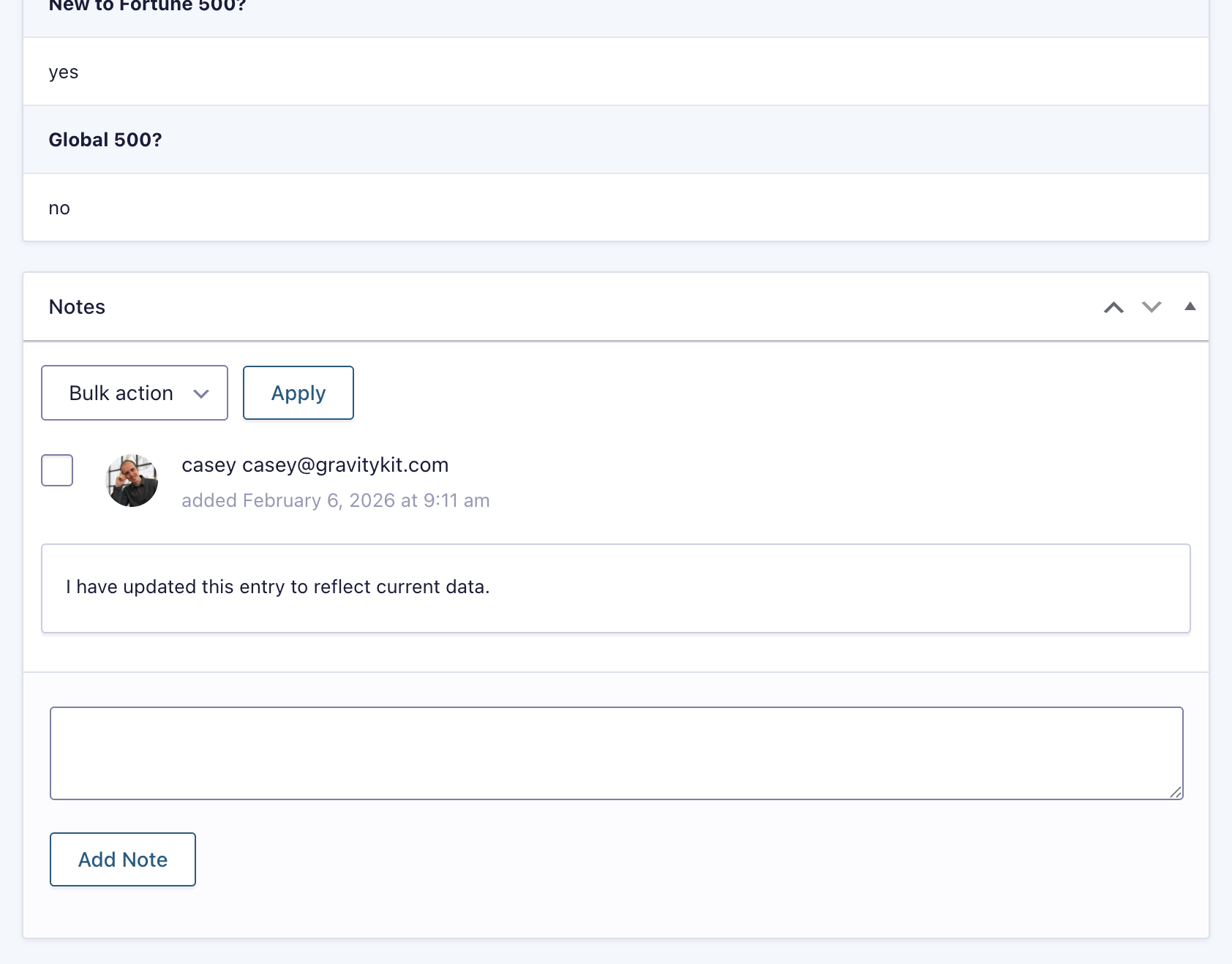
Each note is:
- Timestamped
- Linked to the logged-in user who added it
- Hidden from site visitors by default
Displaying Entry Notes in GravityView
GravityView allows you to display Entry Notes on the front end using the Entry Notes field. This is commonly used in the Single Entry Layout but can be added to the Multiple Entries Layout as well.
To add the Entry Notes field to a View:
- Edit a View.
- Choose a layout (for example, Single Entry).
- From the field picker, select the Entry Notes field.
- Configure the field settings as needed.
- Click Update.
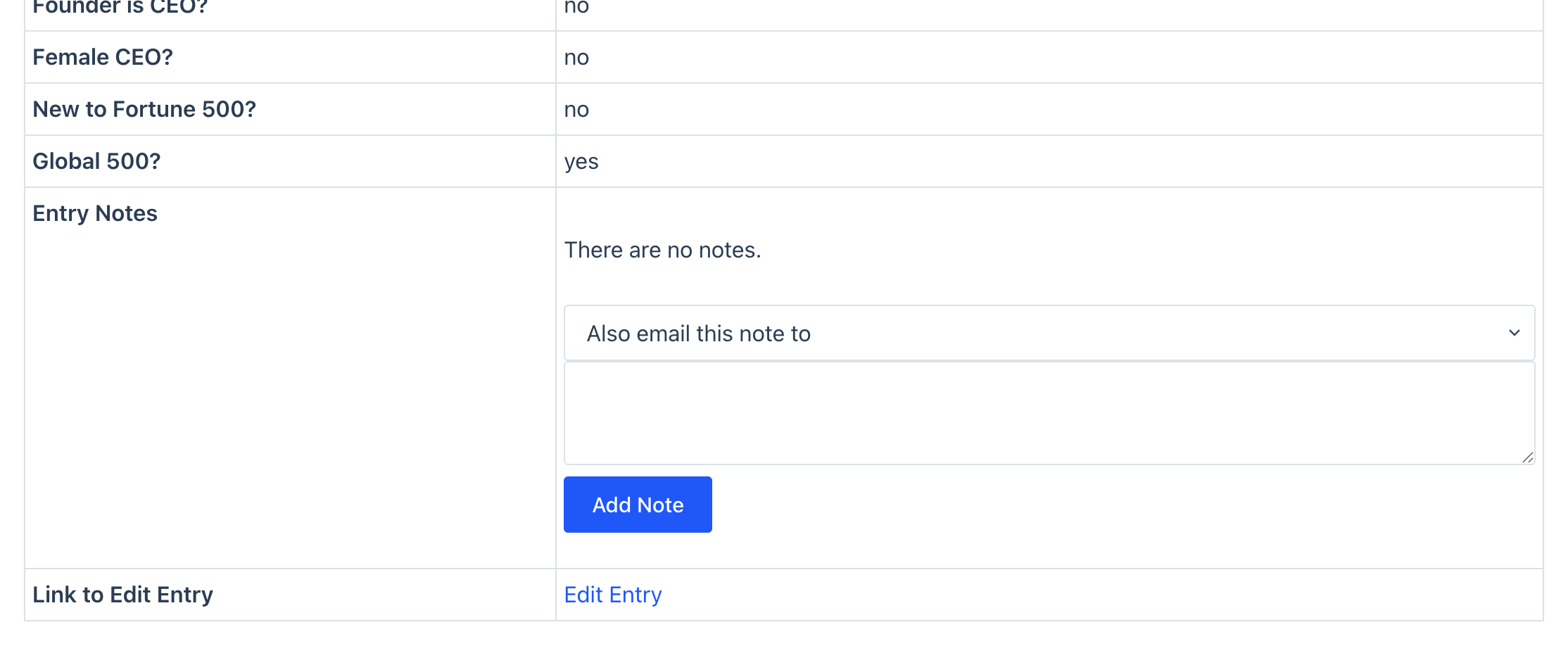
Users with the appropriate permissions can view and interact with notes directly from the front end.
Entry Notes field settings
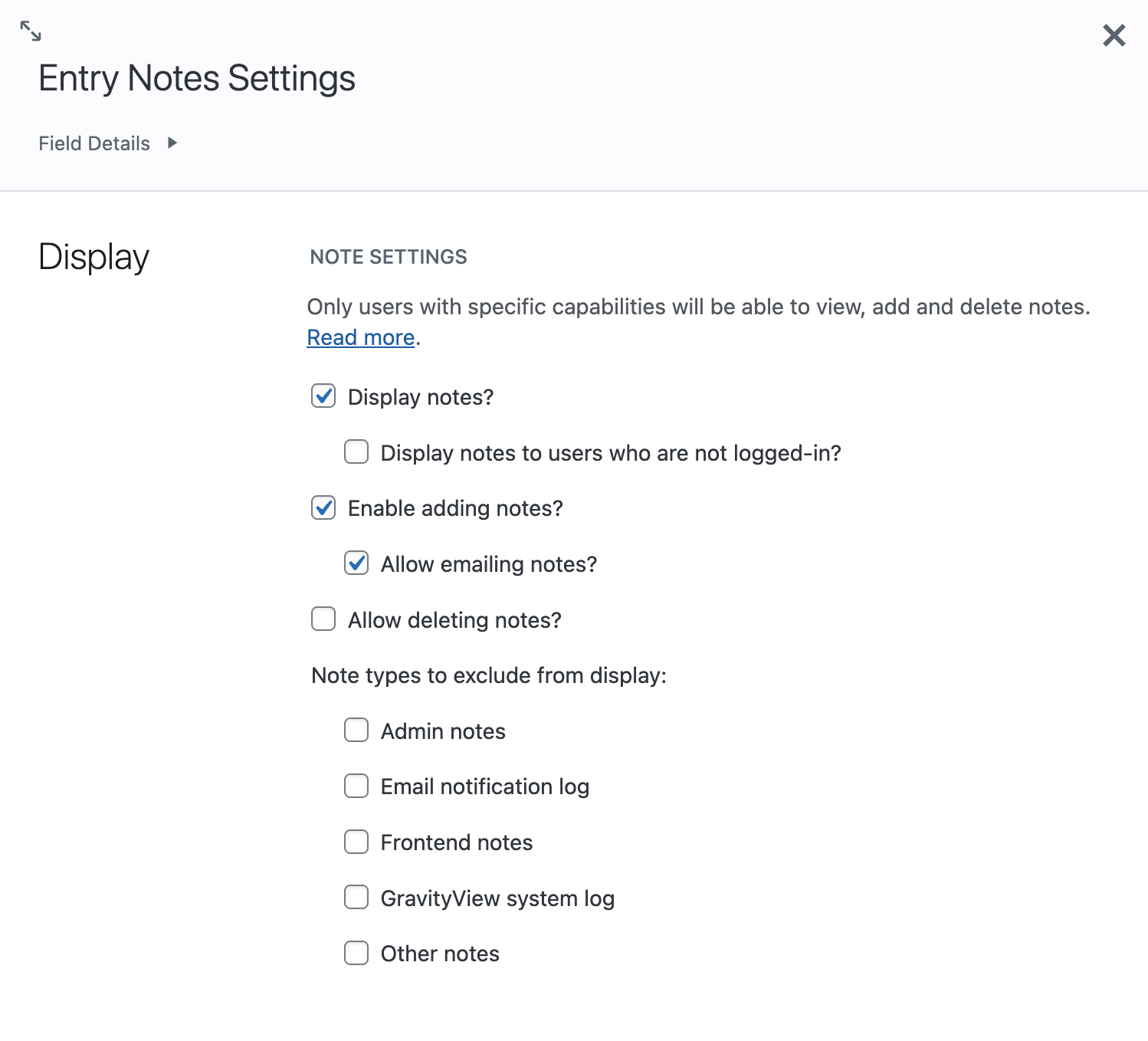
When you add the Entry Notes field to a View, there are several options available for you to customize.
-
Display notes?
Show or hide existing notes.
-
Display notes to users who are not logged-in?
Control whether logged-out users can see notes. By default, notes are only visible to logged-in users.
-
-
Enable adding notes?
Allow users to add new notes from the front end.
-
Allow emailing notes?
Let users email a note to selected recipients (or a specific email address) when adding it.
-
-
Allow deleting notes?
Allow users to delete existing notes.
Filter notes by type
You can choose which types of notes to exclude from display in GravityView.
-
Admin notes
Notes added by administrators in the WordPress admin.
-
Email notification log
Records of email notifications sent for the entry.
-
Frontend notes
Notes added from the front end using GravityView.
-
GravityView system log
Notes generated automatically by GravityView.
-
Other notes
Notes added by third-party plugins or integrations.
Filtering note types is useful if you want to show only front-end notes to users while keeping internal or system notes private.
Permissions and access control
Viewing, adding, and deleting Entry Notes depends on user capabilities. By default, access is limited to administrators. However, you can extend access with role-based permissions.