_1@2x.png)
Why you might not see the Licenses box
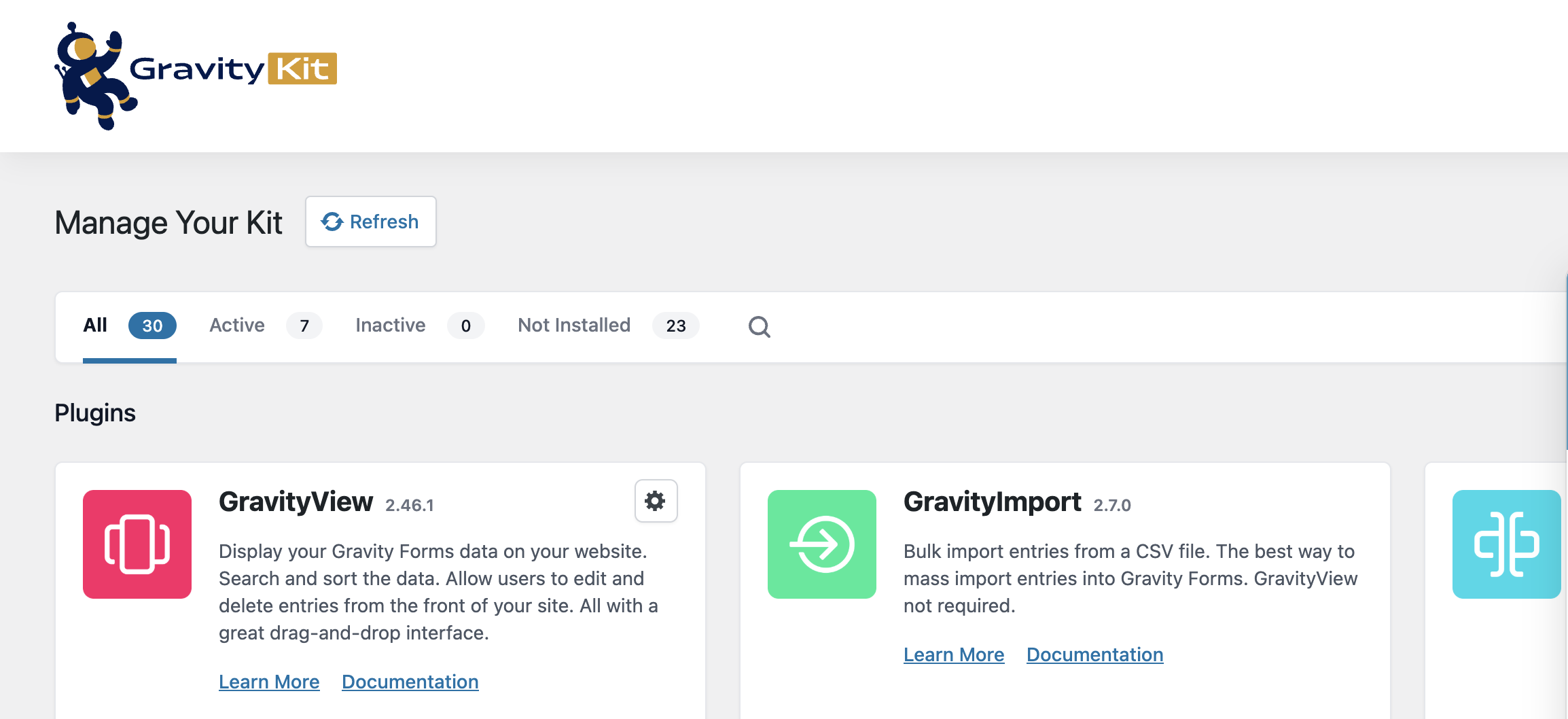
If you’re trying to activate your GravityKit license, but don’t see the usual place to enter your license key, there are a few reasons why the Licenses area may not be visible:
- Insufficient role: Your account doesn’t have Administrator privileges
- Wrong admin area: When a GravityKit plugin is activated for all sites on a multisite installation, licenses are managed on the Network Admin, not the site admin.
- Missing permissions: Your user role doesn’t include the required capabilities (either
manage_optionsorgk_foundation_view_licenses)
How to add a new user role
If you want to grant a user account the ability to manage GravityKit licenses, follow this guide, but make sure to add a custom capability for <b>gk_foundation_view_licenses</b> .
How to check if your site uses multisite
Look at the WordPress admin toolbar. If you see My Sites, your site is using multisite.
On multisite networks, the license box is only available in Network Admin.

How to fix on Multisite
- To activate licenses for a single site, ask your site administrator to grant you Administrator access.
- If your site uses multisite, go to Network Admin, then visit the GravityKit menu to manage licenses.
- If you need limited access, ask a Super Admin to add the
gk_foundation_view_licensescapability to your role. This will make the Licenses box visible.